Interactive displays are changing how teachers explain, question, and assess learning. Yet a bright screen does not automatically create better teaching. The real challenge is understanding how to use interactive displays in education with purpose, restraint, and evidence.
In a Year 5 science lesson, a teacher might display a plant diagram, invite pupils to label its parts, and save their answers for later review. In mathematics, students can drag fraction bars across the screen while explaining each decision aloud. These small actions reveal misconceptions more clearly than silent copying. They also make learning visible.
“Technology will never replace great teachers, but technology in the hands of great teachers can be transformational,” education expert Michael Fullan has said. His observation keeps the teacher at the center. The display supports judgment; it does not provide judgment.
Effective use begins with a clear learning goal. Teachers should test touch accuracy, font size, sound, and accessibility before students enter the room. A lesson can fail because the screen reflects sunlight. It can also fail because too many animations distract from one key idea. This happens.
Research-informed practice favors interaction over decoration. Students should predict, manipulate, explain, and revise. Teachers should collect evidence through quick polls, annotated diagrams, or short peer discussions. These methods connect classroom experience with professional reflection.
Not every activity needs a display. Sometimes, paper and conversation work better. That is worth admitting. The following guidance explores practical routines, common mistakes, inclusive strategies, and measurable ways to improve classroom learning with interactive displays.
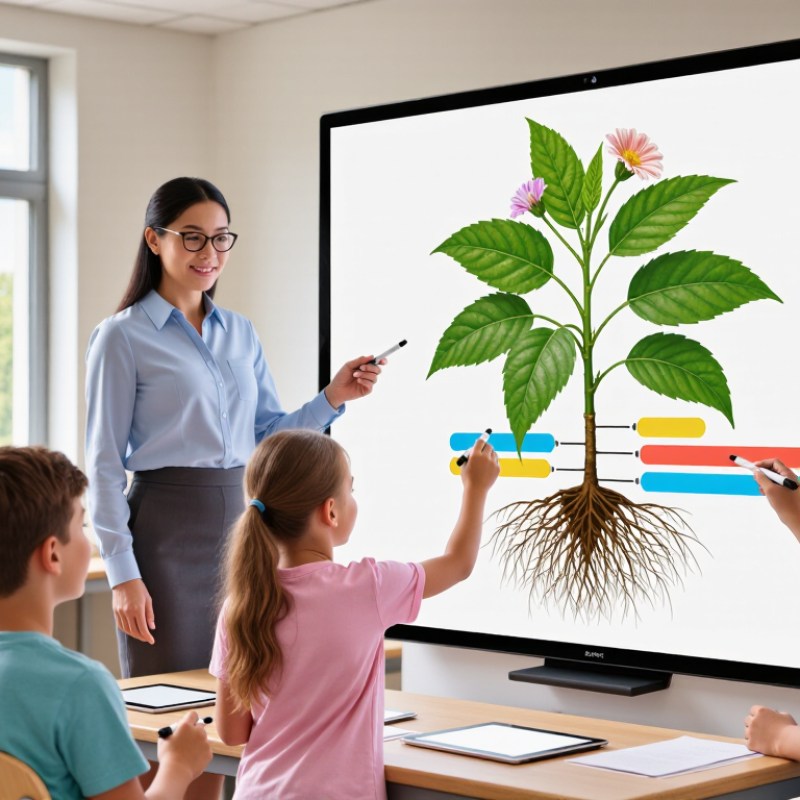
Interactive displays should serve as learning environments, not oversized television screens. Their role is to make thinking visible, shared, and easier to revise. A teacher can enlarge a diagram, annotate a paragraph, or move historical events across a timeline. Students can then explain changes in real time. This supports discussion, visual reasoning, and collaborative problem-solving.
The UNESCO Global Education Monitoring Report 2023 warns that technology improves learning only when its use matches clear educational purposes. It also reports that 16% of countries have policies restricting smartphones in schools. This signals a wider concern: digital tools need boundaries. An interactive display should not replace handwriting, conversation, practical work, or direct teacher guidance. It should connect these activities. Less spectacle. More thinking.
The OECD’s PISA 2022 findings reported that about 30% of students were distracted by digital devices in mathematics lessons. Teachers can reduce this risk through short, purposeful display activities. For example, students might compare two solutions, circle an error, and defend their choice in under three minutes. Classroom trials often reveal a weakness: teachers may control the screen too much. That limits participation. A better design gives students physical access, rotating roles, and time to work away from the display. The screen becomes a shared workspace, not the centre of every lesson. Performance data should be reviewed carefully, because engagement is not the same as learning.
| Educational Role | Typical Classroom Application | Interaction Method | Learning Value | Suggested Implementation Indicator | Effective Practice |
|---|---|---|---|---|---|
| Visual Explanation | Present diagrams, timelines, maps, simulations, and annotated examples. | Touch, zoom, highlight, write, erase, and move visual objects. | Helps learners connect abstract concepts with visible representations. | At least 2 interactive visual elements in a lesson segment. | Reveal information step by step instead of displaying a crowded slide. |
| Active Participation | Use polls, short quizzes, question prompts, and student responses during instruction. | Individual or group responses through touch or connected learner devices. | Creates frequent opportunities for retrieval, feedback, and participation. | One participation opportunity every 10–15 minutes. | Use responses to adjust the next explanation or activity. |
| Collaborative Learning | Groups solve problems, organize ideas, compare solutions, or co-create presentations. | Multi-user annotation, shared whiteboard work, and drag-and-drop activities. | Supports communication, peer reasoning, and shared responsibility. | Groups produce one visible shared outcome per activity. | Assign clear roles such as facilitator, recorder, checker, and presenter. |
| Formative Assessment | Display student work, classify answers, and identify misconceptions in real time. | Annotation, sorting, marking, comparison, and immediate correction. | Provides timely evidence of understanding before a unit assessment. | Record at least one misconception and one next-step action. | Make assessment criteria visible before students begin the task. |
| Differentiated Instruction | Offer visual, textual, audio, and scaffolded versions of the same learning task. | Adjustable text, contrast, zoom, media, and layered instructions. | Improves access for learners with different readiness levels and needs. | Provide at least 2 pathways to access or demonstrate learning. | Keep essential content consistent while varying support and complexity. |
| Digital Literacy | Teach information evaluation, media creation, online safety, and responsible collaboration. | Navigate resources, create digital artifacts, cite information, and revise work. | Develops purposeful technology use rather than passive screen consumption. | Include one explicit digital-literacy objective in the lesson plan. | Model source checking, privacy awareness, and respectful digital behavior. |
| Remote and Hybrid Connection | Include remote learners in demonstrations, discussions, and collaborative tasks. | Live sharing, shared annotation, video participation, and synchronized resources. | Reduces separation between in-person and remote learning experiences. | Provide the same core task and resource access to all learners. | Check camera framing, audio clarity, accessibility, and participation equity. |
| Lesson Organization | Display objectives, instructions, timers, group roles, and exit-ticket prompts. | Persistent visual cues, templates, timers, and reusable lesson layouts. | Reduces transition time and makes classroom routines more predictable. | Display the objective, success criteria, and next task at each phase. | Use a consistent screen layout so learners can find information quickly. |
| Student Creation | Students explain solutions, present projects, annotate evidence, or teach a concept. | Student-led writing, drawing, modeling, recording, and presentation. | Shifts the display from a presentation tool to a learner-production space. | Reserve at least one student-led interaction in each major lesson. | Assess reasoning and communication, not merely the visual quality of the output. |
| Review and Reflection | Summarize key ideas, revisit errors, and complete exit tickets or reflection prompts. | Annotation, concept mapping, ranking, and before-and-after comparison. | Strengthens retrieval and helps learners recognize progress and remaining gaps. | End with one evidence-based reflection or retrieval activity. | Save reusable review materials and connect them to the next lesson. |
Start with learning goals, not screen size. Check touch accuracy, viewing distance, brightness, wall space, and internet access.
Choose accurate touch response and a comfortable writing angle. Students need smooth writing, not impressive specifications.
Use multi-touch, clear viewing angles, and simple content sharing. Let students sort, annotate, compare, and explain ideas together.
Create short activity blocks. Ask students to predict, match, rank, annotate, or justify answers on the screen.
Keep printed tasks, downloaded media, and discussion prompts ready. Students should continue learning when the screen stops responding.
Use a think, discuss, act, and explain routine. Give pairs time before screen responses. Rotate classroom roles.
Usually five to eight minutes. Short tasks reduce passive viewing and leave room for spoken reasoning.
Use the display only for defined tasks. Turn it off during explanations when visuals are unnecessary.
Save selected annotations and ask short exit questions. Rapid tapping may look successful, but it can hide weak understanding.
Check contrast, text size, captions, reach, and comfortable touch access. Offer another participation method when needed.
Interactive displays can transform modern education when they are used as tools for purposeful learning rather than simple presentation screens. To understand how to use interactive displays in education, teachers should first connect their use to clear learning goals, student abilities, and classroom conditions. The selected display should support the required activities, provide convenient access to digital resources, and remain easy for both teachers and students to operate.
Effective use also depends on thoughtful preparation. Teachers can adapt lessons with visual explanations, interactive questions, collaborative tasks, and accessible digital materials. Structured activities should guide students to participate, discuss ideas, solve problems, and demonstrate understanding instead of allowing technology to distract from the lesson. Finally, teachers should assess learning through responses, completed tasks, observation, and student feedback. Reviewing these results helps identify which interactive methods improve engagement and comprehension, allowing display-based teaching practices to become more focused, inclusive, and effective over time.

 Fray Tech